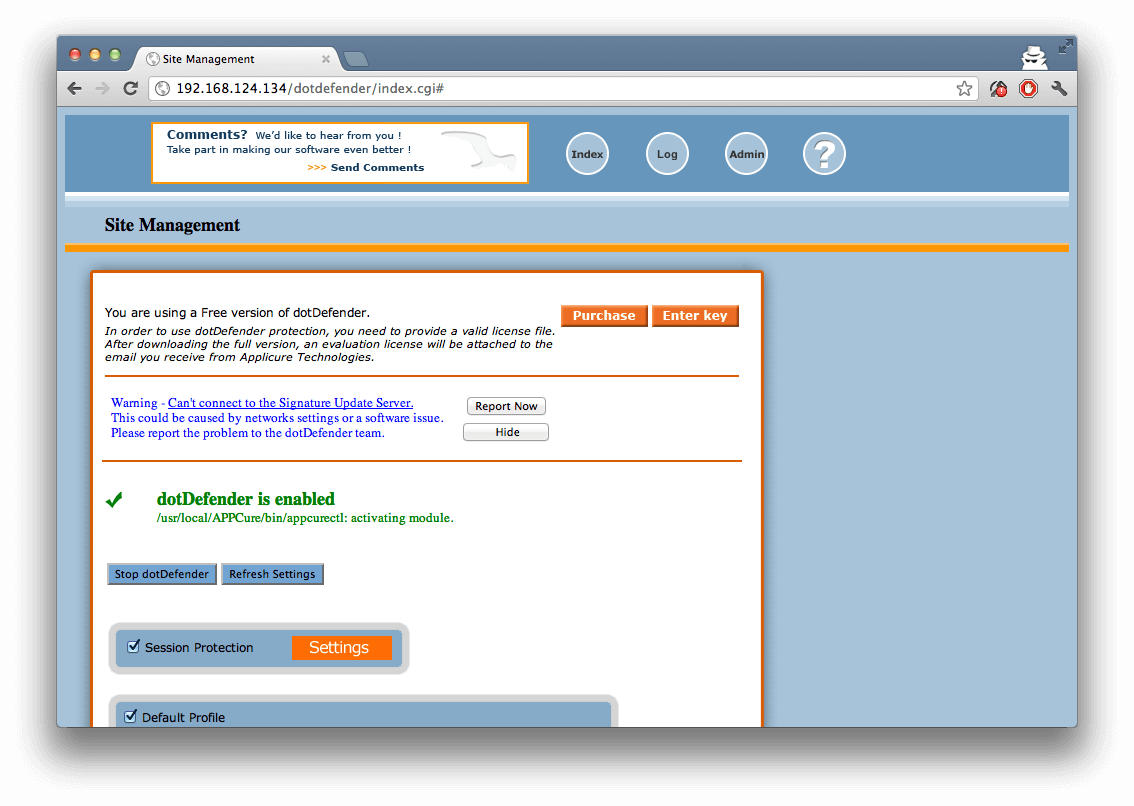
Installing Dot Defender
a11y.text Installing Dot DefenderPreparing our Web Application Environment
a11y.text Preparing our Web Application EnvironmentFirst we have to install dotDefender on Metasploitable. This can be done by opening a command prompt and using wget on the following url:
http://www.applicure.com/downloads/3.85/linux/dotDefender-3.8-5.Linux.i386.deb.bin.gz
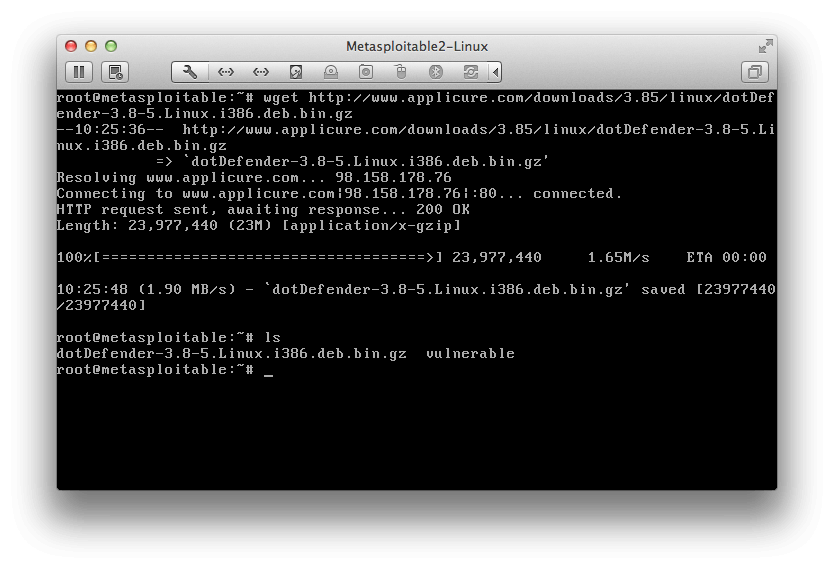
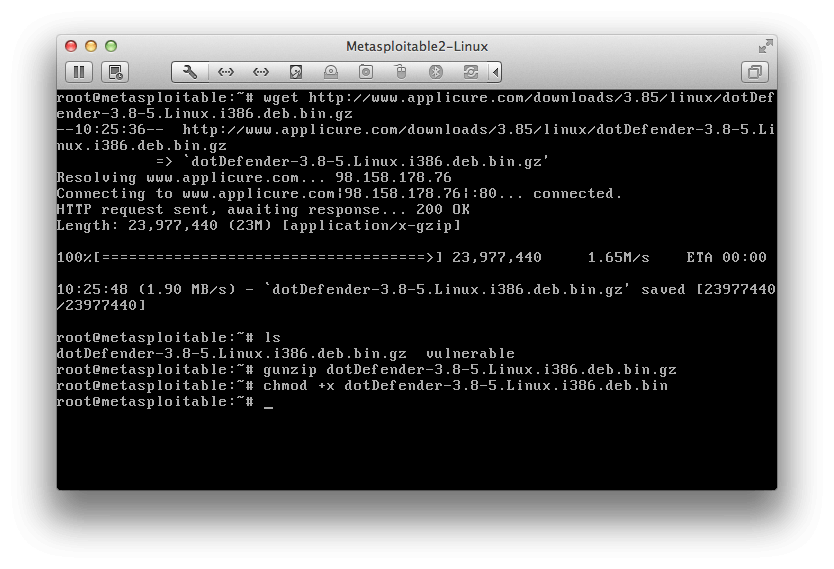
Then we must gunzip the downloaded file, make it executable using the chmod command and then run the .bin file to start the installation.
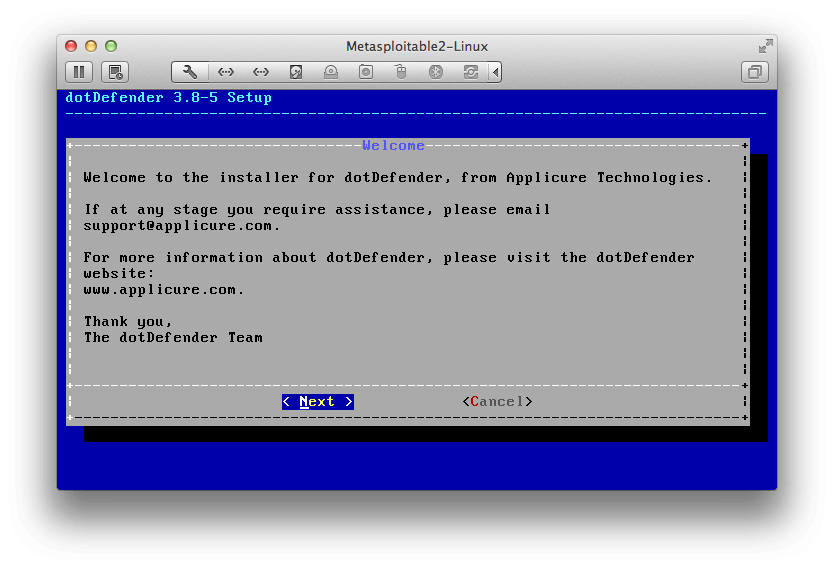
Once the installation starts we should be prompted with the following screen. Select “Next”.
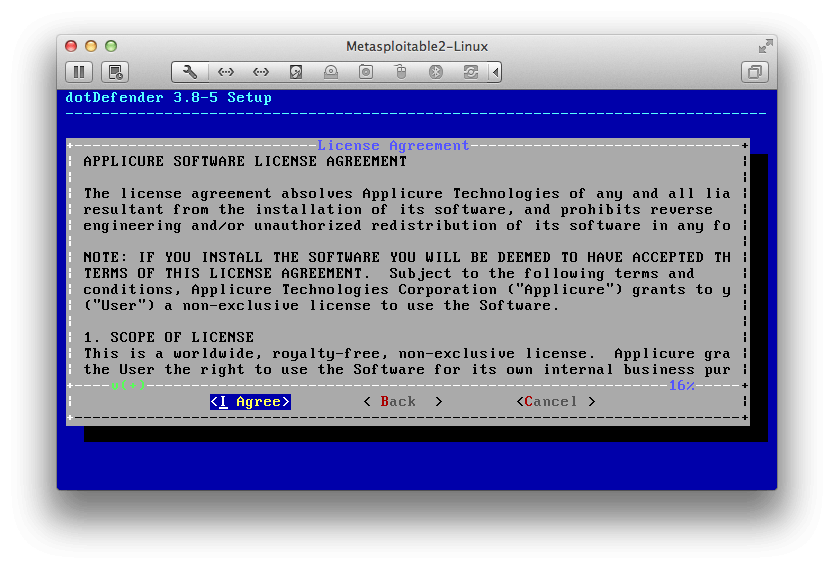
We must agree to the License Agreement by selecting “I Agree”.
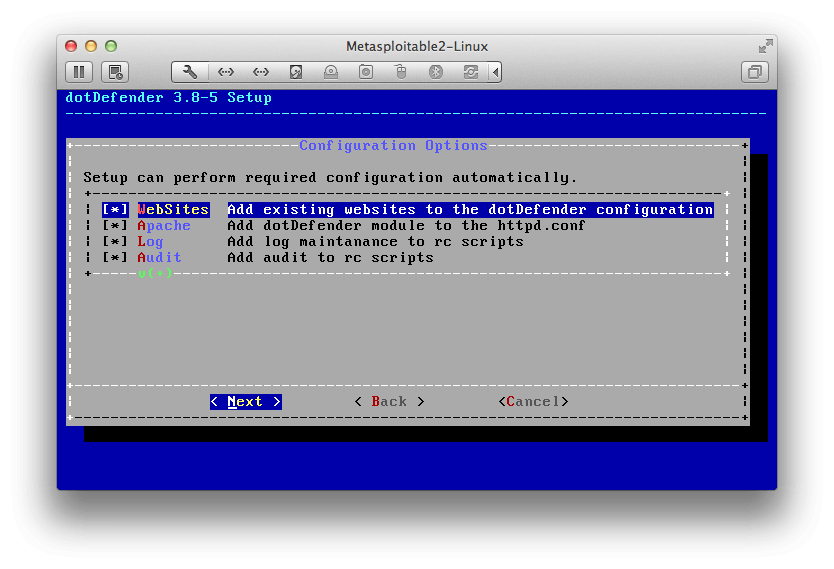
We can leave the default options and continue with the installation by selecting “Next”.
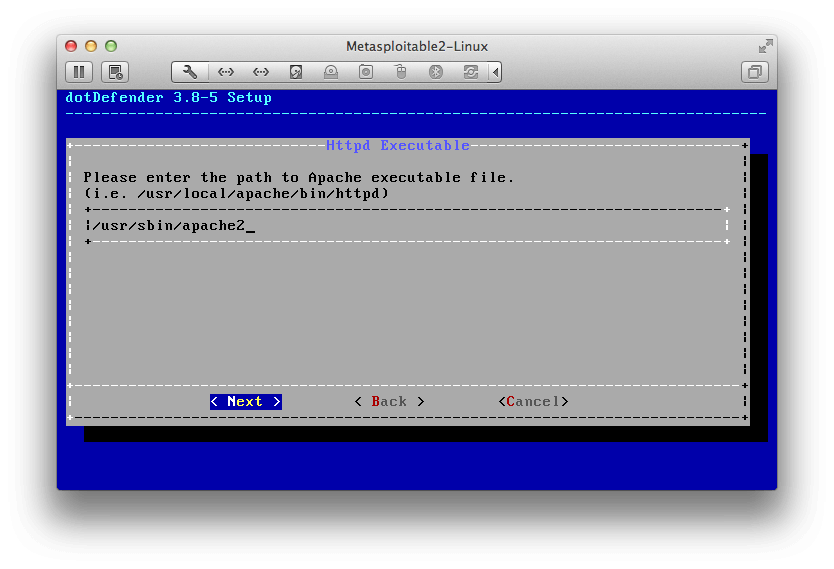
Here we must insert the location of Apache in Metasploitable. Apache is located at:
/usr/sbin/apache2
Then continue by selecting “Next”.
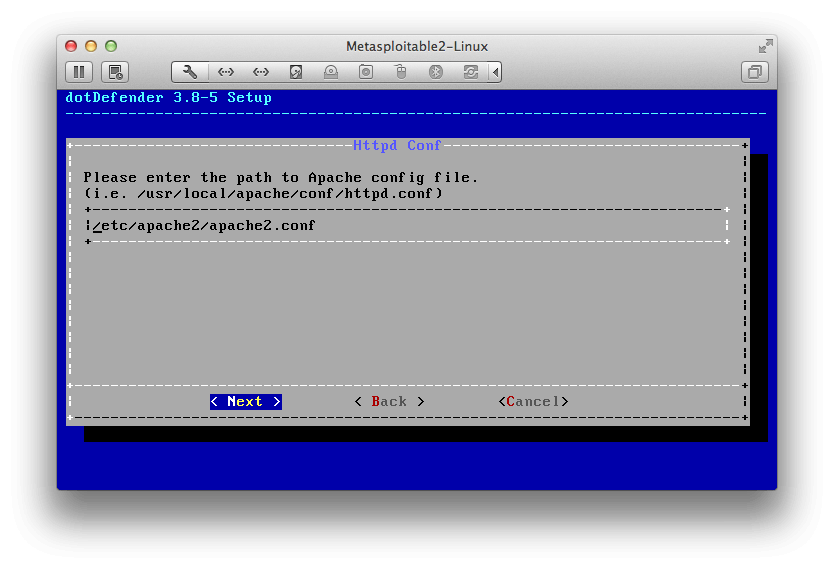
This information should be auto-filled in by the installer. Continue by selecting “Next”.
Here we must enter the password we would like to use for the dotDefender Administration GUI. Once we are finished we can select “Next”.
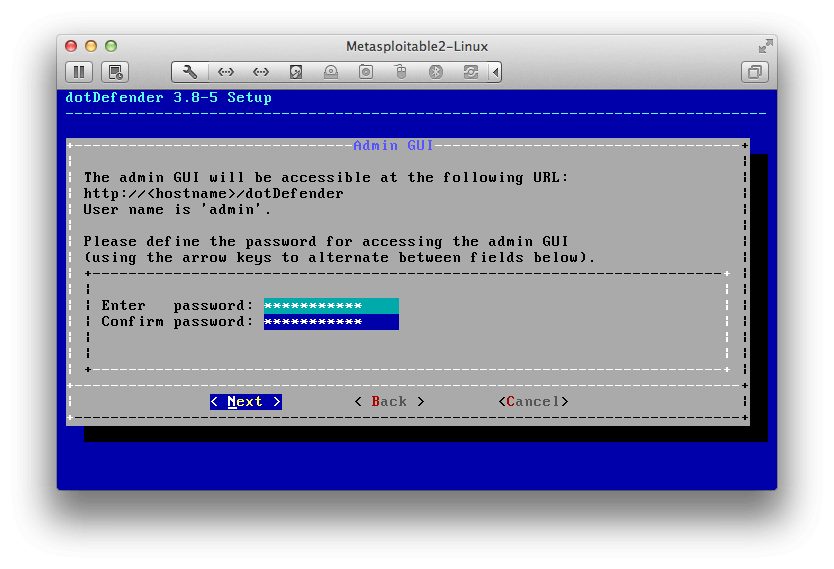
Make sure all the configuration options are correct with the following picture and select “Next”.
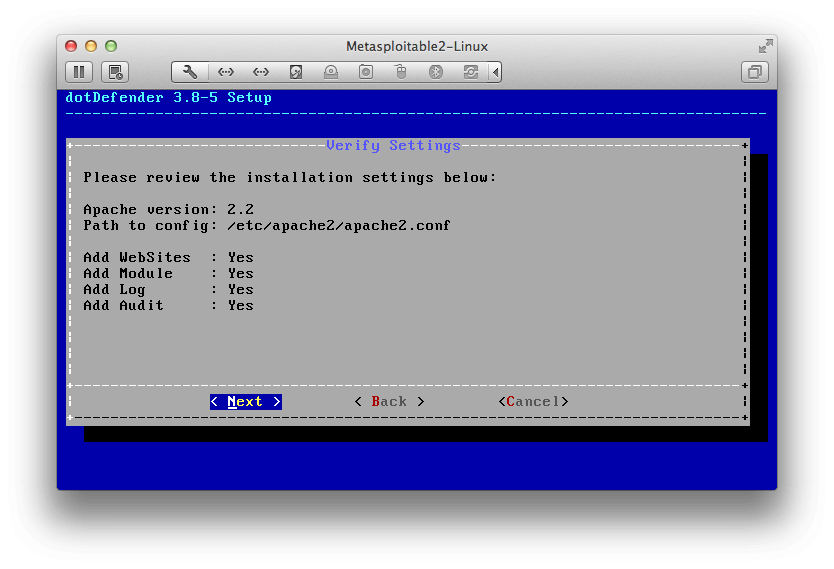
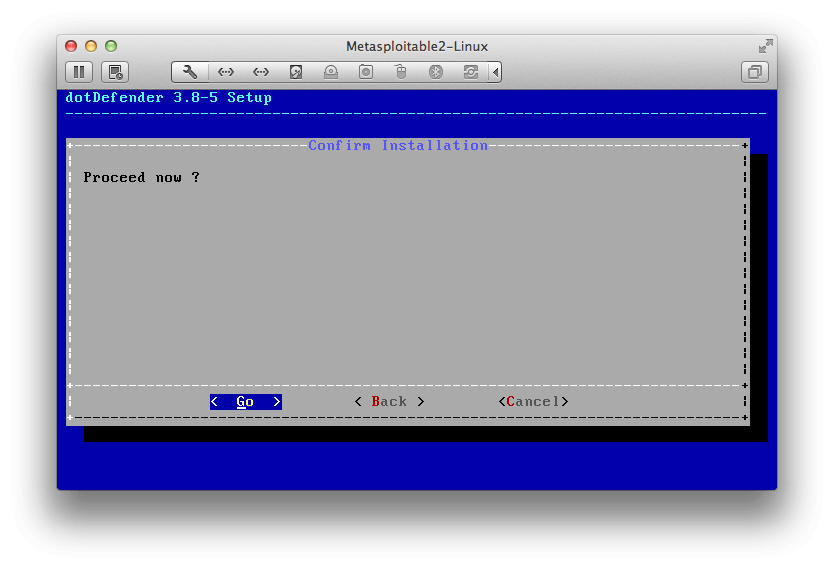
Once we select “Go” the installation will begin.
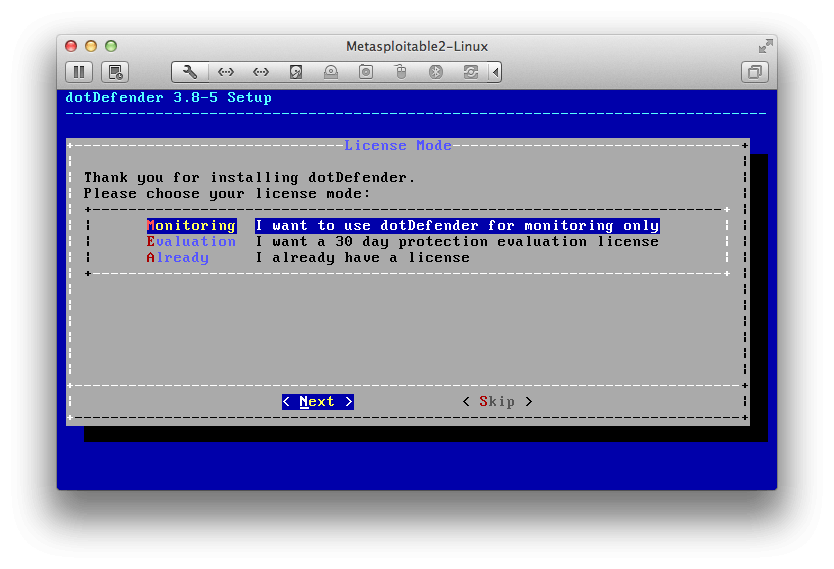
For this demonstration we only need to use dotDefender for monitoring. Once that is selected we can hit “Next”.
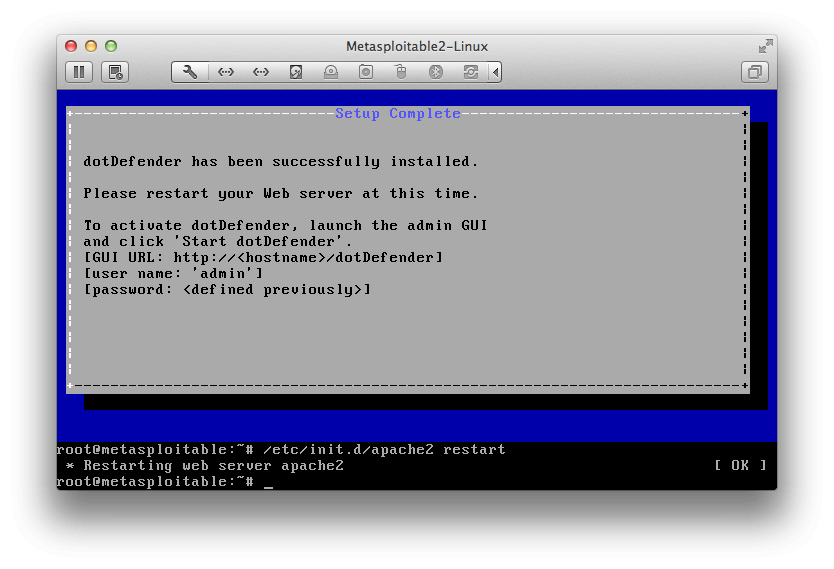
If everything was successful we should have a screen like the one as follows. We will need to restart Apache before being able to use dotDefender so we can do so with:
/etc/init.d/apache2 restart
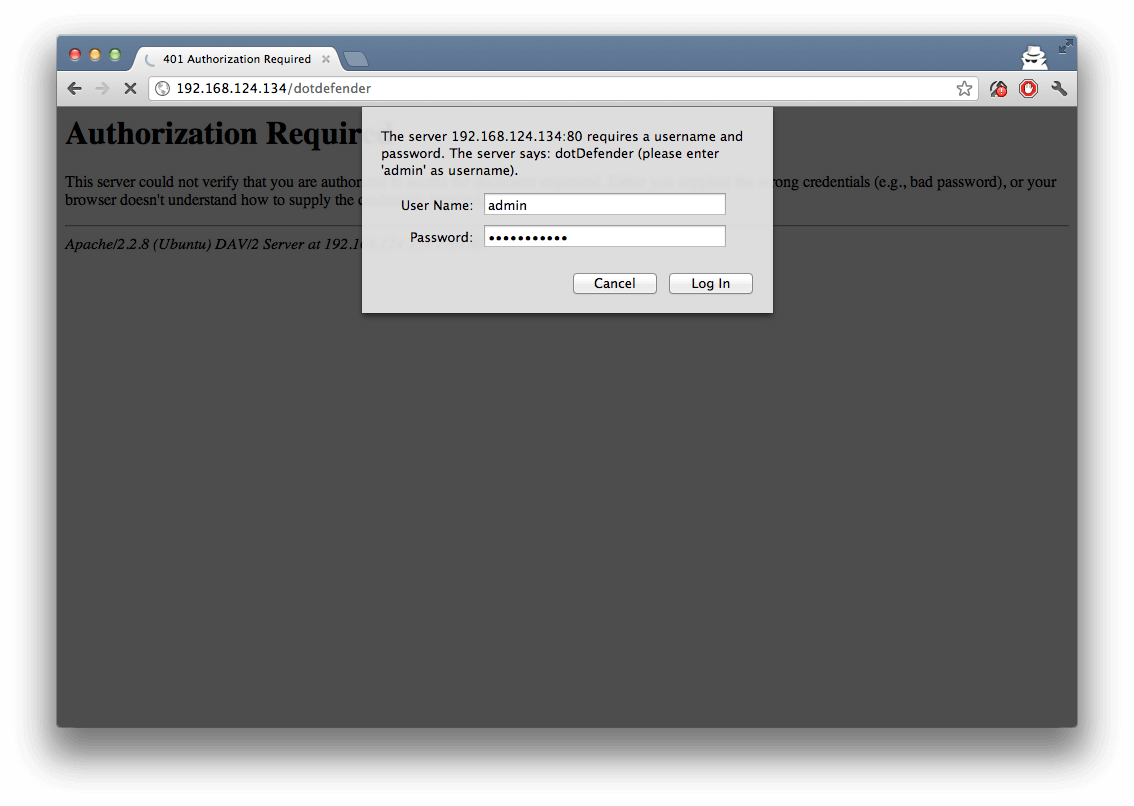
Once Apache has restarted we will need to connect to the GUI URL and insert the username “admin” and the password we created during the install and then hit “Log In”.
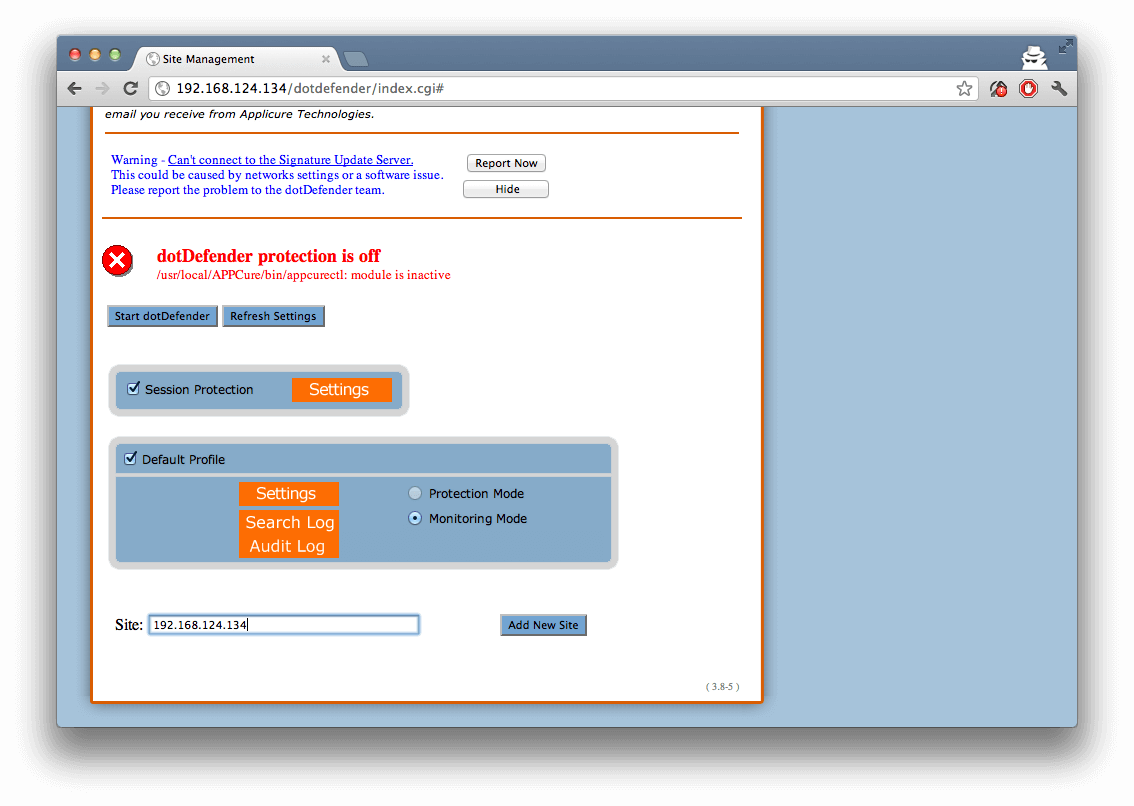
Now we have to add the site to dotDefender. This will be the IP of Metasploitable. Then select “Add New Site”.
Once it has been added we will see the new section. Now the only thing left to do is select “Start dotDefender”
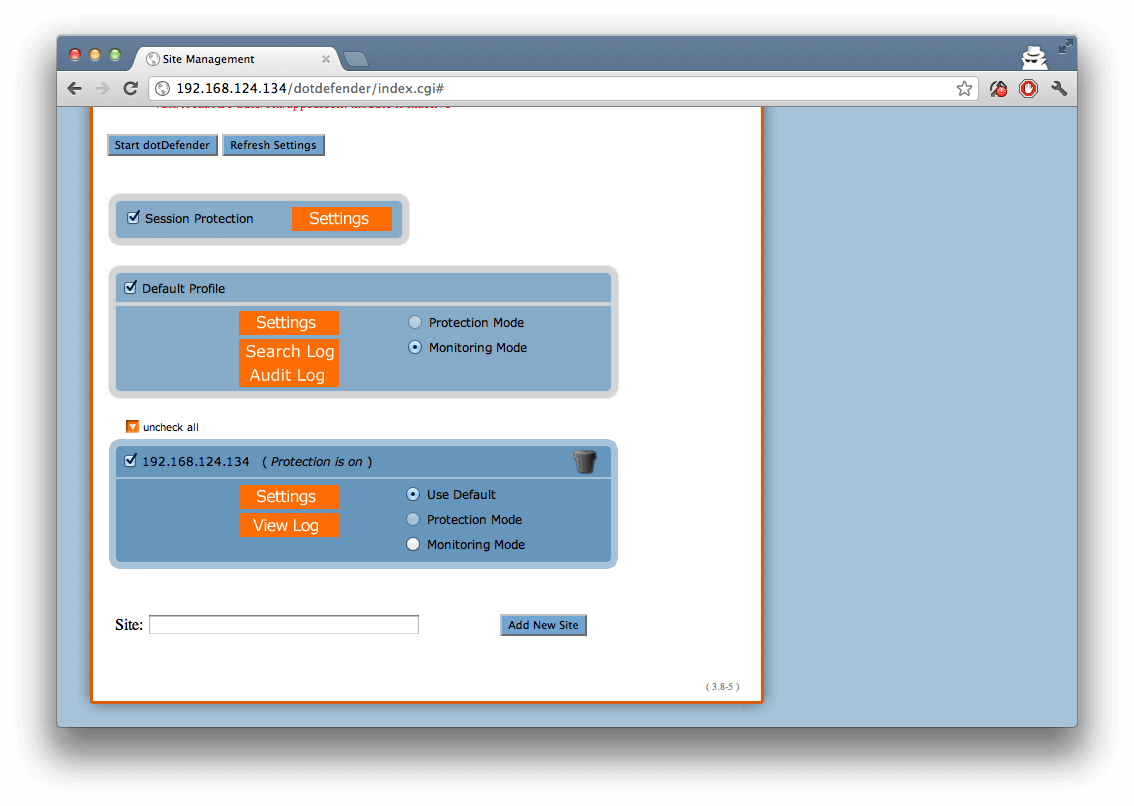
Once we see the green check mark saying “dotDefender is enabled” the install is finished.